
Download Genie Backup Manager – Secure PC Backup, Restore & Recovery Tool
Overview
Genie Backup Manager Home is a comprehensive backup, restore and recovery utility designed to safeguard your Windows PC against accidental deletions, hardware failures, and even natural disasters. Built with both power users and beginners in mind, the software guides you through a clear, step‑by‑step wizard that lets you back up anything from a single file or folder to an entire drive. Jobs can be saved, scheduled, and repeated automatically, ensuring that your most critical data is always protected without manual intervention. The full version adds a secure cloud account, giving you off‑site storage that protects your files even if your hardware is completely destroyed. While the application packs a lot of functionality, its intuitive tours, contextual help, and logical workflow make it approachable for anyone who needs a reliable backup solution.
In today’s data‑driven world, losing files can mean lost work, lost memories, and costly downtime. Genie Backup Manager addresses these concerns by offering granular control over what gets backed up, where it’s stored, and how often the process runs. Whether you are a freelance designer safeguarding large media assets, a small business protecting client records, or a home user who simply wants peace of mind, this tool provides a flexible, secure, and user‑friendly experience. The program also supports incremental backups, compression, and encryption, helping you keep storage costs low while ensuring your data remains private. Overall, Genie Backup Manager stands out as a solid, feature‑rich option that balances complexity with simplicity.
Key Features & Benefits
- Full‑system, drive‑level, folder‑level, and file‑type specific backup options.
- Step‑by‑step backup wizard with visual tours for first‑time users.
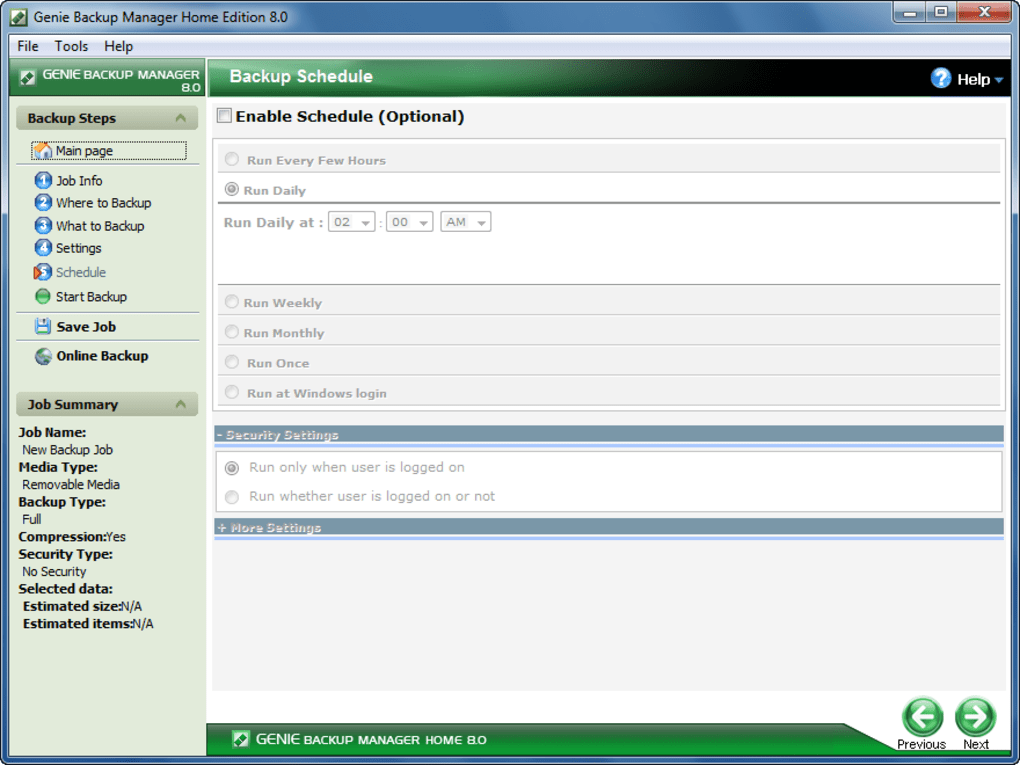
- Scheduled jobs with flexible recurrence patterns (daily, weekly, monthly).
- Incremental and differential backup modes to save space and speed up processes.
- Built‑in compression and AES‑256 encryption for secure storage.
- Local backup to external drives, network shares, or secure cloud storage.
- One‑click restore with version history, allowing you to roll back to any previous point.
- Automatic verification of backup integrity after each run.
- Detailed logs and email notifications for successful or failed jobs.
- Multi‑language support and accessibility options for a global audience.
These features translate directly into real‑world benefits. Incremental backups mean you only store changes, dramatically reducing the amount of space needed on your backup media. Encryption ensures that, even if a backup drive falls into the wrong hands, the data remains unreadable.
The scheduling engine eliminates the need for manual intervention, letting you set it and forget it. Cloud integration adds an extra layer of protection—if a fire, flood, or theft destroys your physical hardware, your files are still safe on Genie’s secure servers. Additionally, the clear UI and helpful tooltips reduce the learning curve, so even users with limited technical expertise can configure robust backup strategies within minutes.
Installation, Usage & Compatibility
Installing Genie Backup Manager Home is straightforward. Download the installer from the official website, run the .exe file, and follow the on‑screen prompts. The installer checks for required Windows components (such as .NET Framework) and offers to install them if missing, ensuring a smooth setup. Once installed, the program launches a welcome tour that walks you through creating your first backup job.
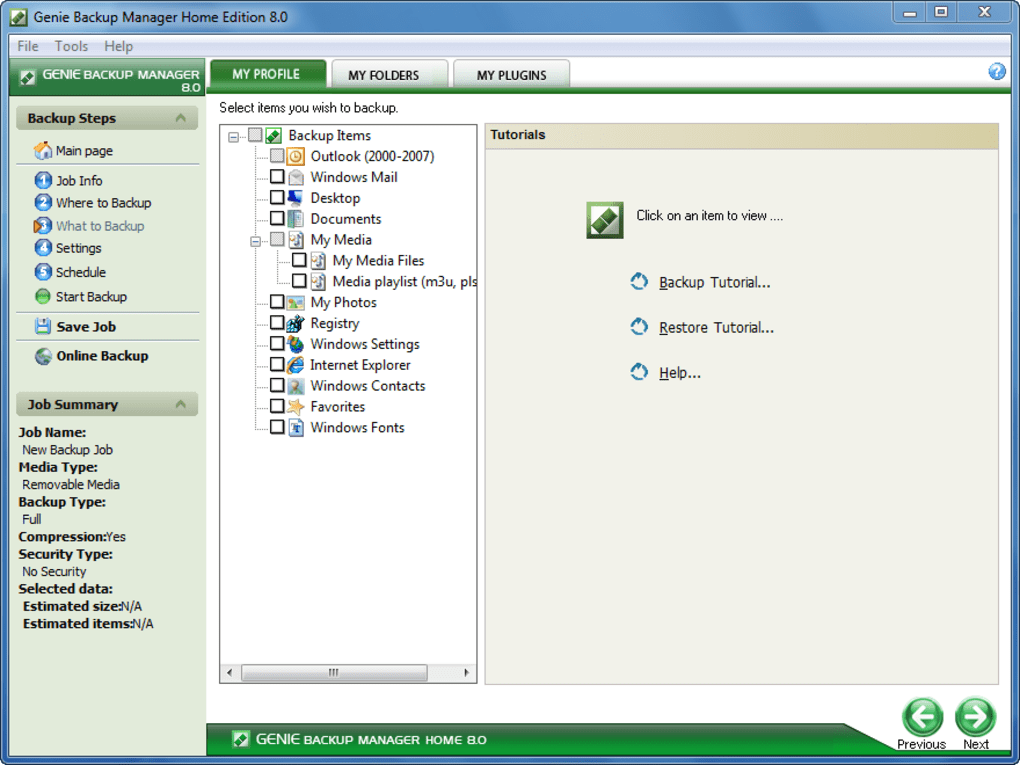
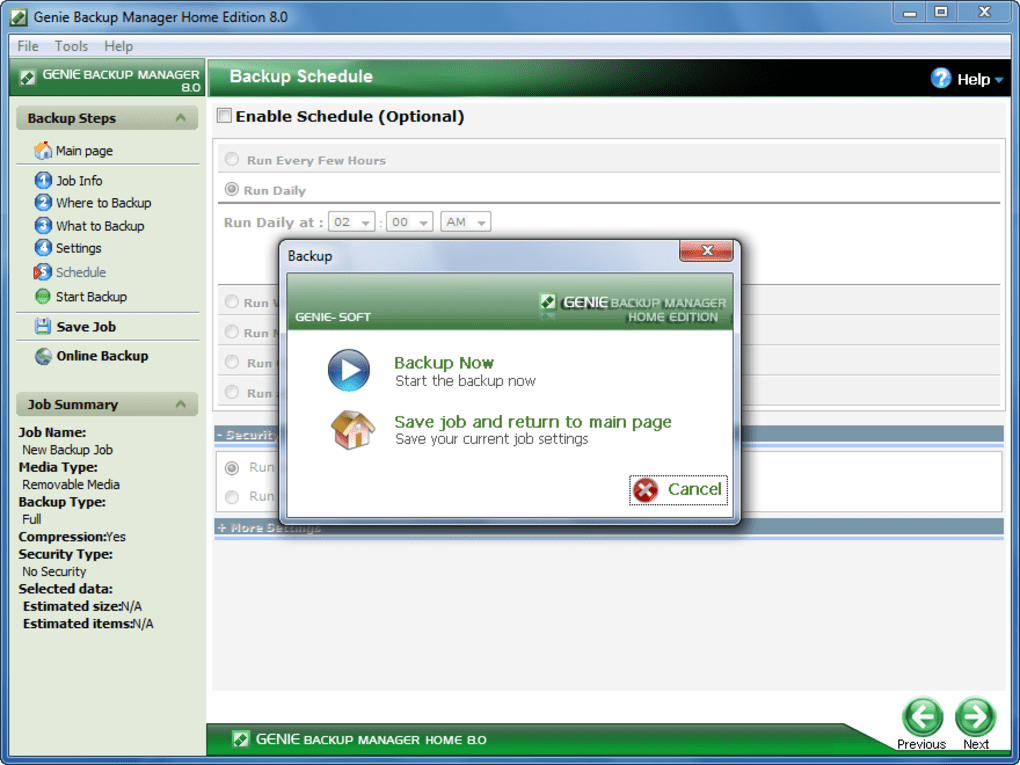
Creating a Backup Job: Click “New Job,” choose the source (folder, drive, or file type), select a destination (local drive, network share, or cloud account), and define a schedule. The wizard then asks whether you want a full, incremental, or differential backup. For most users, the default incremental setting offers the best balance of speed and storage efficiency. After confirming your settings, the job is saved and will run automatically according to the schedule you defined.
Restoring Files: When you need to recover data, open the “Restore” tab, select the backup set, browse the versioned file list, and click “Restore.” Genie will place the files back in their original location or a folder of your choosing. The built‑in integrity check guarantees that the restored files match the original data.
Compatibility: Genie Backup Manager Home is built for 64‑bit Windows 10, Windows 11, and Windows Server 2016/2019/2022. It requires a minimum of 2 GB RAM, 500 MB free disk space for installation, and a 1 GHz processor. While the software is Windows‑only, backups can be stored on any device that supports standard file systems (NTFS, FAT32, exFAT) or accessed via the web portal from macOS, Linux, Android, or iOS devices.
Pros, Cons, FAQ & Conclusion
Pros
- Highly flexible backup options (full, incremental, differential).
- User‑friendly wizard and comprehensive tutorials.
- Secure cloud storage option for off‑site protection.
- Robust encryption and compression to keep data safe and storage efficient.
- Automatic integrity checks and detailed logs.
Cons
- Only available for Windows; no native macOS or Linux client.
- Advanced features (cloud backup, multiple simultaneous jobs) require the paid version.
- Initial setup can be time‑consuming if backing up large drives for the first time.
Frequently Asked Questions
Can Genie Backup Manager encrypt my backups?
Yes. The software uses AES‑256 encryption, which is applied before data is written to the destination, whether that’s a local drive or the cloud.
How often can I schedule a backup?
Backups can be scheduled as frequently as every hour, daily, weekly, or monthly. You can also set custom intervals for more granular control.
Is there a limit to how much data I can store in the cloud?
The free tier offers up to 5 GB of cloud storage. Paid plans start at 100 GB and go up to unlimited storage, depending on the subscription level.
Can I restore a single file without restoring the whole backup?
Absolutely. The restore interface lets you browse the backup catalog and select individual files or folders for recovery.
Does Genie Backup Manager support network drives?
Yes. You can set a network share (SMB/CIFS) as either a source or a destination, making it easy to back up multiple PCs to a central server.
Conclusion & Call to Action
Genie Backup Manager Home delivers a powerful, yet approachable backup solution for Windows users who demand both local and cloud protection. Its blend of granular backup controls, strong encryption, and an intuitive wizard makes it suitable for novices and power users alike. While the lack of native macOS/Linux clients may be a drawback for mixed‑OS environments, the web portal offers a viable workaround for remote access. For anyone looking to protect valuable data against hardware failure, accidental deletion, or catastrophic events, Genie Backup Manager is a solid investment.
Ready to secure your files with a reliable backup strategy? Download Genie Backup Manager now and start building a resilient data protection plan today.







